Website Home Page
It is very much possible in EnigmaERP to setup certain standard page as default website Home Page. Following are steps to setup default website home page.
Step 1: Create a Web Page#
To create a web page go to: Website > Web Site > Web Page and then click on the New button in the upper right.
- Fill in the page title
- Give the page a route (keep it lower case)
- Add content to the
Main Contentsection. If you want, you can use markdown to create a more complex page. - Tick (Check) the
Publishedcheck box - Click the
Savebutton.
Step 2: Open Website Settings Page#
To Open website settings page go to: Website > Setup > Website Settings
Step 3: Set Home page#
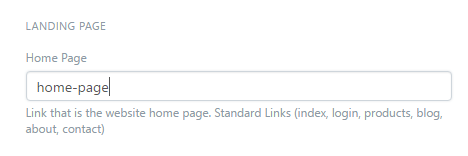
Enter the same value you entered for the route field in the previous section to the Home Page field. EnigmaERP will set this route to be the same as /index for your page.
Step 4: Save Website Settings Form.#
After setting up Home Page Press Save button from website settings page and refresh the system from Help menu. Like this you can set any standard page as your default website home page. When some one visited to your website, he/she will see home page as default landing page on your website.