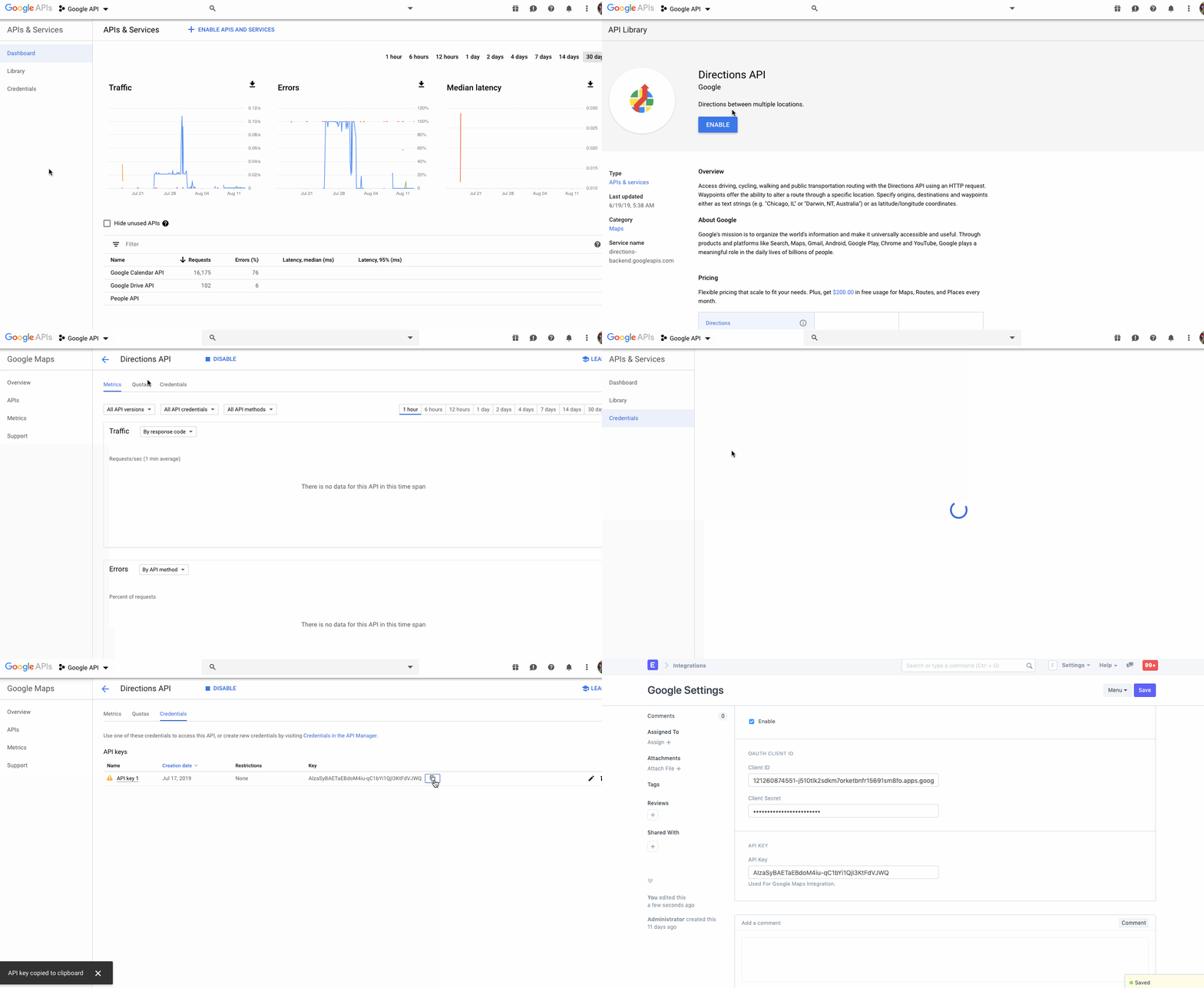
Google Settings
To enable Google Integrations, EnigmaERP needs access to the API through which the data will be synced which is achieved using OAuth 2.0 Authentication Protocol.
How to set up Google Settings#
For Google Calendar, Google Contacts, Google Drive and Google Indexing#
In order to allow a synchronization with any of the above mentioned services, you need to authorize EnigmaERP to get data from Google. Following is an example for setting up Google Contacts Integration
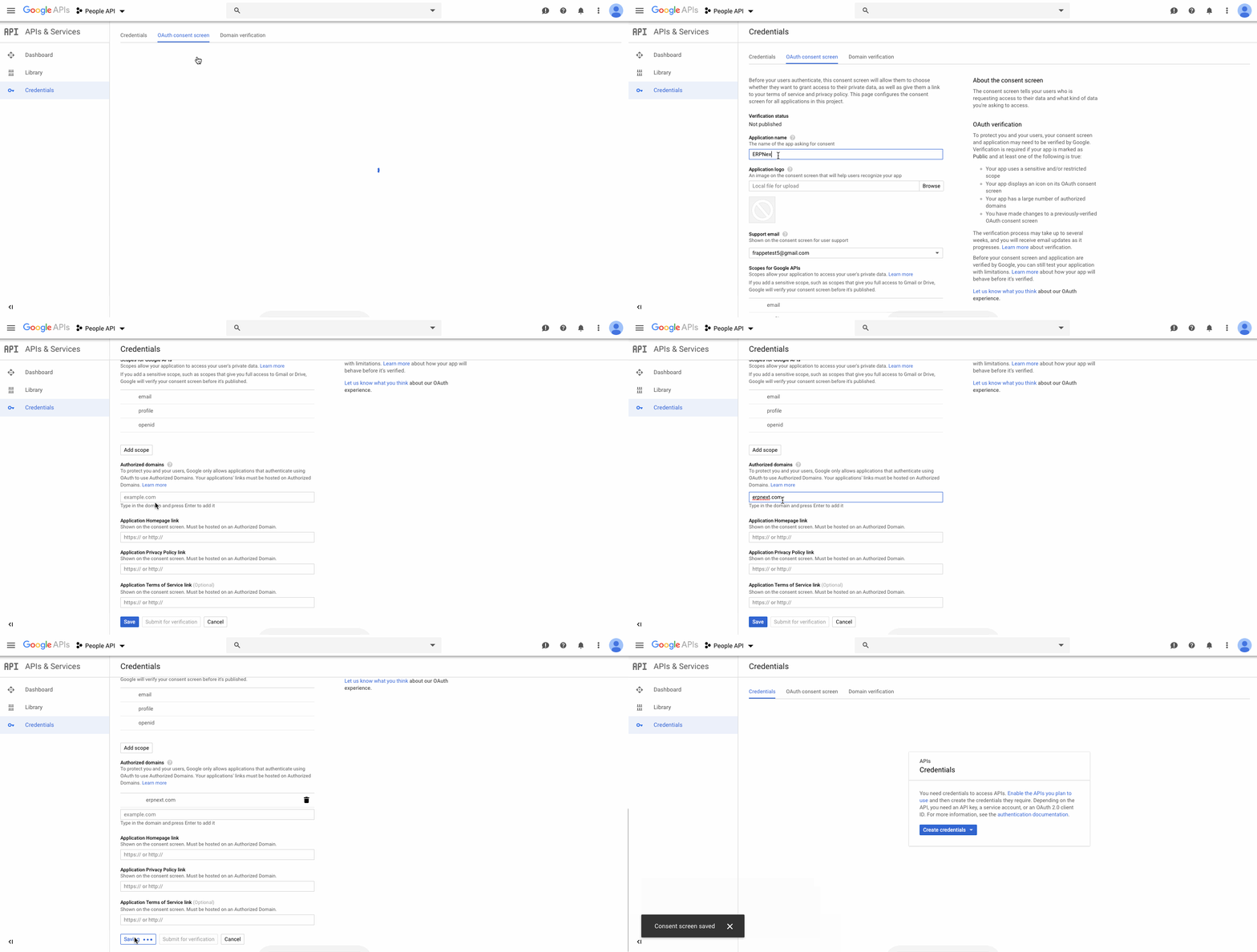
- Create a new project on Google Cloud Platform and generate new OAuth 2.0 credentials.
-
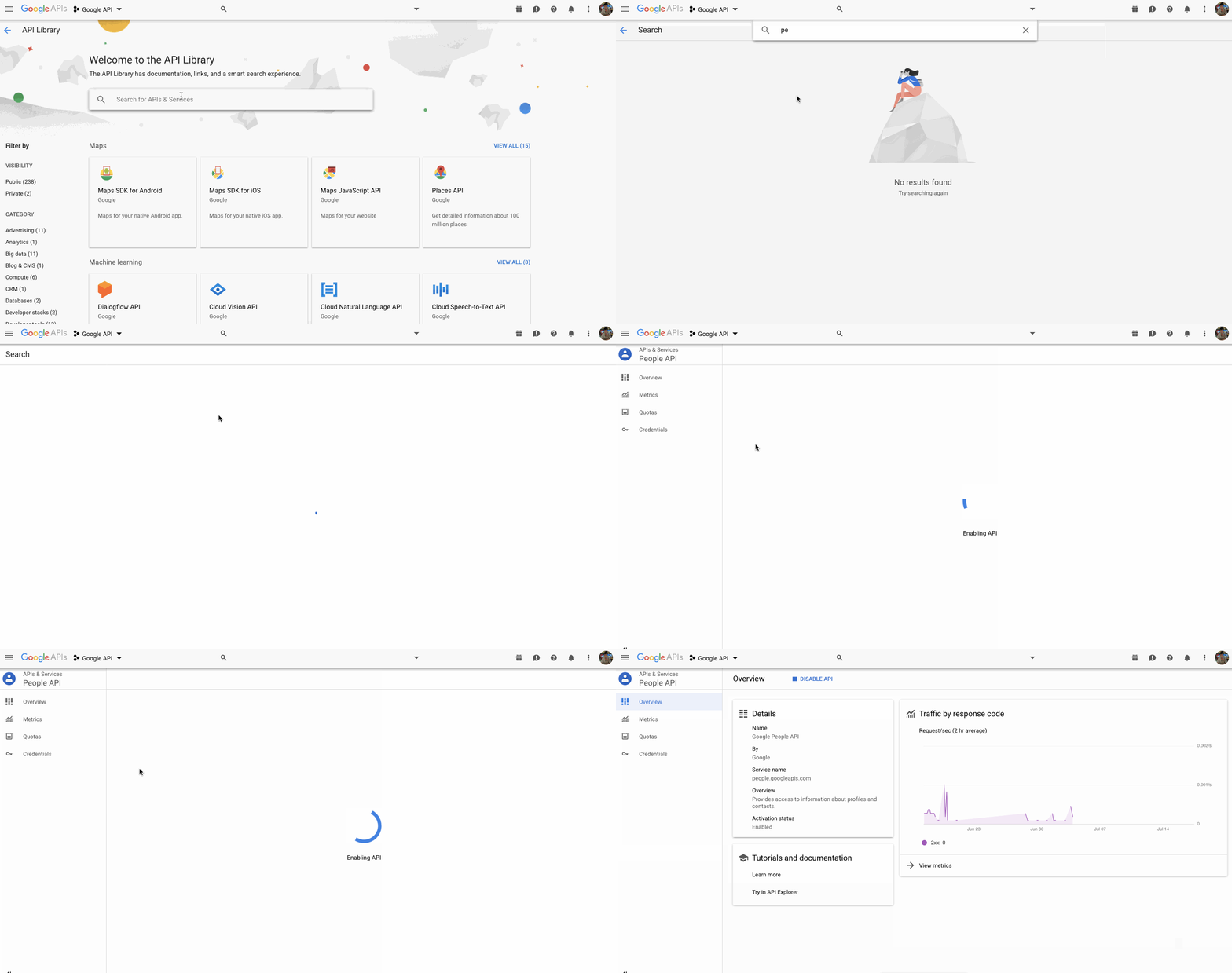
Enable API Access in API Library for the Integration you wish to integrate.
- Google Calendar: Calendar API
- Google Contacts: People API
- Google Drive: Drive API
- Google Indexing: Indexing API
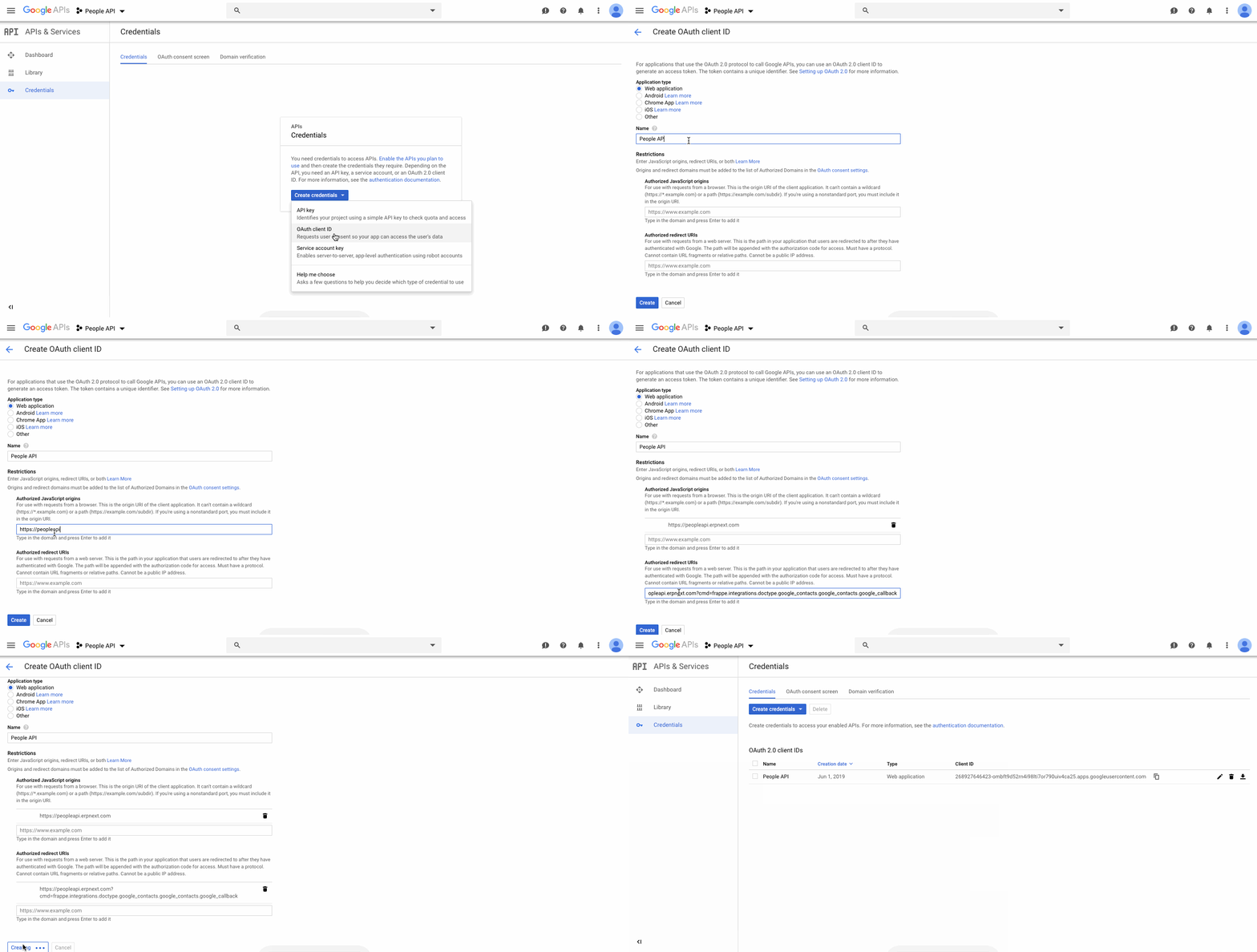
- In API & Services > Credentials create a new Credential and select Create OAuth client ID
- Select Application Type Web Application
- Add
https://{yoursite}to Authorized JavaScript origins.
 * Add your Client ID and Client Secret in the Google Settings in Home > Integrations > Google Services > Google Settings
For Google Maps#
Setting the API Key is only required if you want to use the Directions API, for example in EnigmaERP's Delivery Trip. For the other features, this is not required.
In order to allow a synchronization with Google Maps you need to generate an API key as Google Maps doesn't need access to data from Google.
- Create a new project on Google Cloud Platform and generate new API Key.
- Enable API Access in API Library for the Directions API and then add the API Key in the Google Settings in Home > Integrations > Google Services > Google Settings.