Maintenance Sales Orders#
A Maintenance Sales Order records an agreed maintenance service for a Customer. It uses the Sales Order workflow while enabling maintenance-related actions and allowing service invoicing without a stock delivery.
Before you begin#
Create the Customer, service Item, and required serial-number or installation details. Confirm access to the maintenance documents used by your process.
Create a Maintenance Sales Order#
- Open Sales Order and select Add Sales Order.
- Select the Company and Customer.
- Set Order Type to Maintenance.
- Add the maintenance Item, quantity, rate, and service date.
- Enable Skip Delivery Note when no stock delivery is needed.
- Review taxes, payment terms, addresses, and terms.
- Save and submit the order.
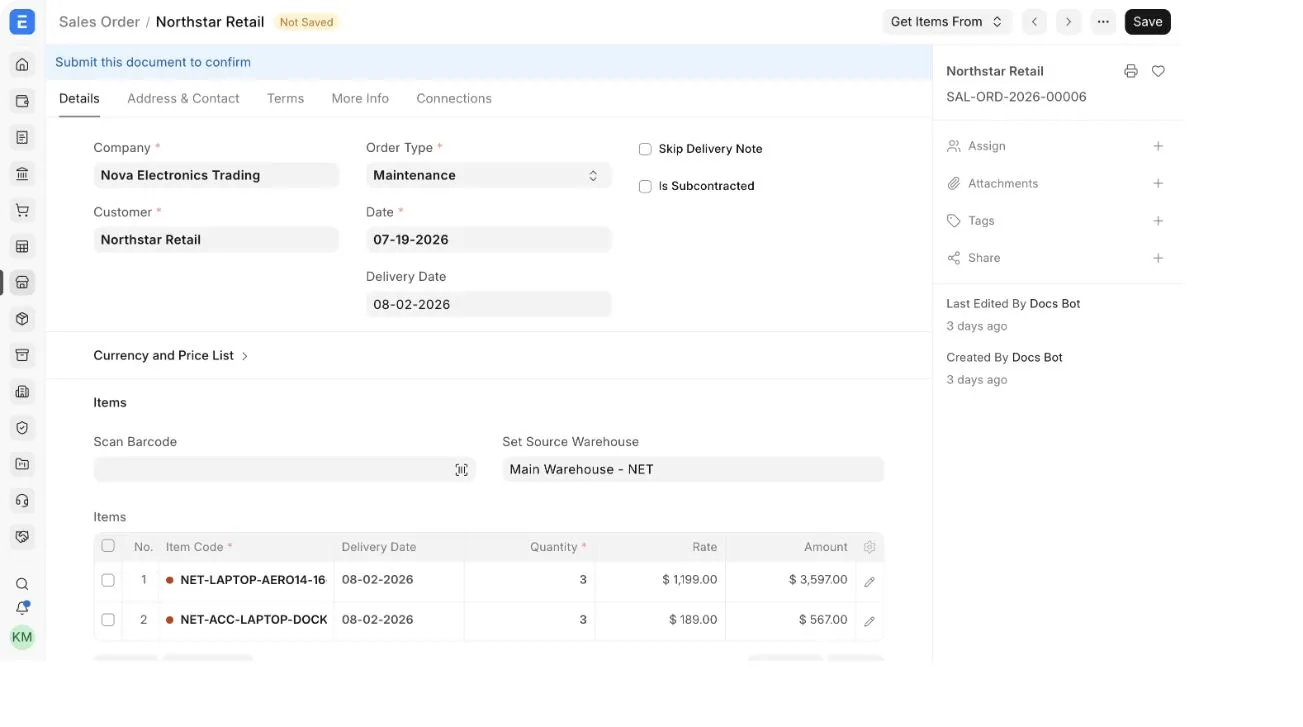
Leave Skip Delivery Note disabled when the order includes goods that must be delivered through a Delivery Note.
Create maintenance documents#
After submission, use the available Create actions. Depending on enabled features and document state, these can include:
- a Maintenance Schedule to plan recurring service;
- a Maintenance Visit to record work performed;
- a Sales Invoice to bill the Customer.
Review generated documents and confirm the Customer, Items, dates, assigned personnel, serial numbers, and service details.
Troubleshooting#
Skip Delivery Note is not visible#
Confirm that Order Type is Maintenance. The checkbox is conditional.
Maintenance actions are missing#
Confirm that the order is submitted, required features are configured, and your role can create the target document.
Frequently asked questions#
Can a Maintenance Sales Order include parts?#
Yes, but use the delivery workflow for stock Items that physically leave your Warehouse.
Is a Maintenance Schedule mandatory?#
No. Use it when service must occur on planned dates. A one-time service may use only the documents required by your process.