Add Margin to Quotations and Sales Orders
Margin increases an item's transaction Rate above its Price List Rate. EnigmaERP can apply a percentage or fixed amount directly on a Quotation or Sales Order item, or apply it automatically through a Pricing Rule.
Before you begin#
Create:
- The required Item.
- A selling Price List.
- An Item Price that supplies the Price List Rate.
Margin needs a reference Price List Rate. If no rate is fetched, verify the Item Price before troubleshooting the margin calculation.
Add margin directly to an item#
- Create a Quotation or Sales Order.
- Select the Customer, Price List, and Item.
- Select the highlighted pencil icon to open the complete item-row editor.
- Set Margin Type to Percentage or Amount.
- Enter Margin Rate or Amount.
- Review the calculated Rate and Amount.
- Save.

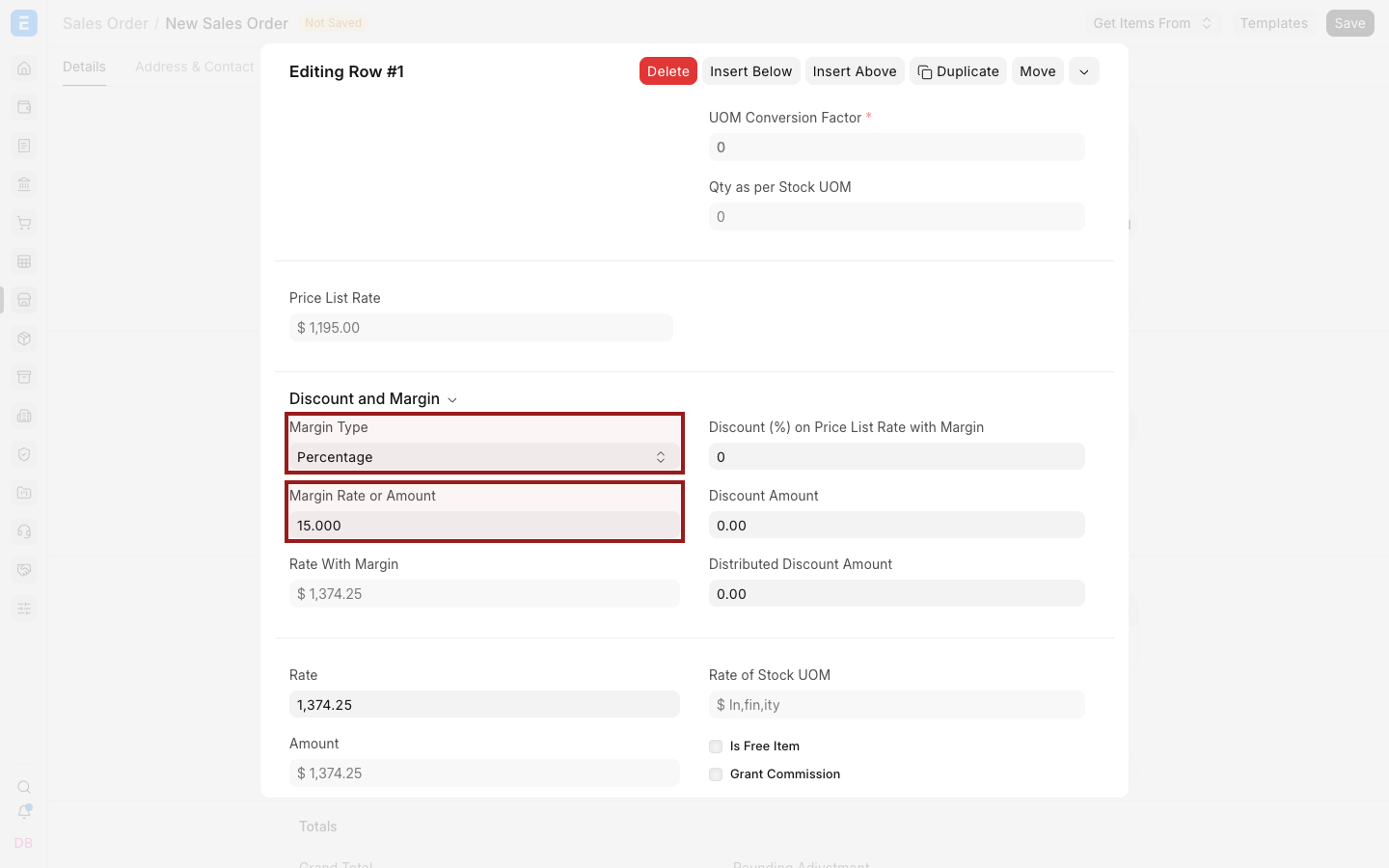
Margin calculation#
For a fixed margin:
Rate = Price List Rate + Margin Amount
For a percentage margin:
Rate = Price List Rate + (Price List Rate × Margin Percentage ÷ 100)
Example:
| Value | Amount |
|---|---|
| Price List Rate | $1,000 |
| Margin | 15% |
| Margin amount | $150 |
| Resulting Rate | $1,150 |
Any item discount is evaluated separately. Review Price List Rate, Margin, Discount, Rate, and Net Rate together when both are used.
Apply margin automatically with a Pricing Rule#
Use a Pricing Rule when the same margin should apply under repeatable conditions.
- Create or open a Pricing Rule.
- Configure its applicability, such as Item, Item Group, Customer, Customer Group, quantity, amount, and validity.
- In the Margin section, select Percentage or Amount.
- Enter the Margin Rate or Amount.
- Save and enable the rule.
- Test it on a new Quotation or Sales Order.
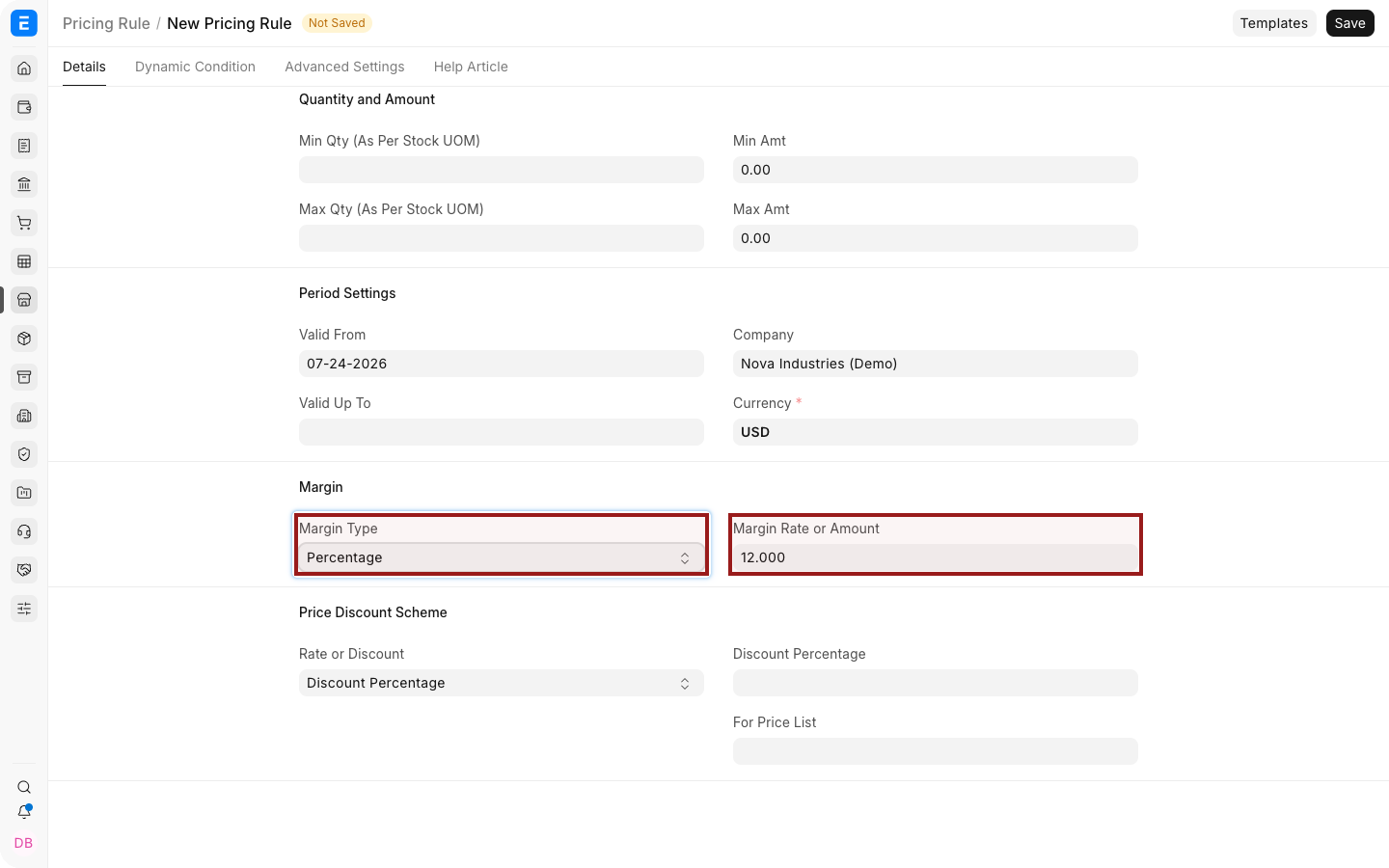
When several rules can match, review their priorities and conditions. A more specific rule may need a higher priority than a general Item Group rule.
Margin and discounts#
Margin and discount solve different pricing needs:
- Margin adds a markup to the Price List Rate.
- Applying a Discount reduces a price or total.
- A fixed Pricing Rule Rate can replace the fetched rate.
Avoid combining them without a documented pricing policy. Users should be able to explain how the final Rate was reached.
Downstream transactions#
When a Sales Order is created from a Quotation, or a Sales Invoice is created later in the cycle, verify the mapped Rate. Selling Settings can warn or stop users when the rate changes through the sales cycle.
Troubleshooting#
| Problem | What to check |
|---|---|
| Margin fields do not affect Rate | Confirm that a Price List Rate was fetched |
| Margin is not applied automatically | Verify the Pricing Rule is enabled, valid, and matches the transaction |
| A different rule wins | Review rule priority, Item or party specificity, and overlapping conditions |
| The downstream rate changes | Review mapped values and the Maintain Same Rate setting |
| Final profitability is unclear | Margin is based on Price List Rate, not necessarily valuation or purchase cost |
Frequently asked questions#
Is margin calculated from valuation rate?#
No. The item margin fields use Price List Rate as their pricing reference.
Can I add a fixed dollar margin?#
Yes. Select Amount as the Margin Type.
Can margin apply to Sales Invoices?#
Margin fields are primarily entered on Quotation and Sales Order items. Downstream documents can carry the resulting rate.
How do I enforce a minimum selling price?#
Review the selling-price validation in Selling Settings and test it against your purchase or valuation rates.