Setting Up Dropbox Backups
We always recommend customers to maintain backup of their data in EnigmaERP. The database backup is downloaded in the form of an SQL file. If needed, this SQL file of backup can be restored in the another EnigmaERP account as well.
You can automate database backup download of your EnigmaERP account into your Dropbox account.
> >
To setup Dropbox Backup, > Home > Integrations > Dropbox Settings
Step 1: Login to Dropbox Developer area#
<https://www.dropbox.com/developers/apps>
Step 2: Create a new Dropbox app#

Step 3: Fill in the details for your new app#
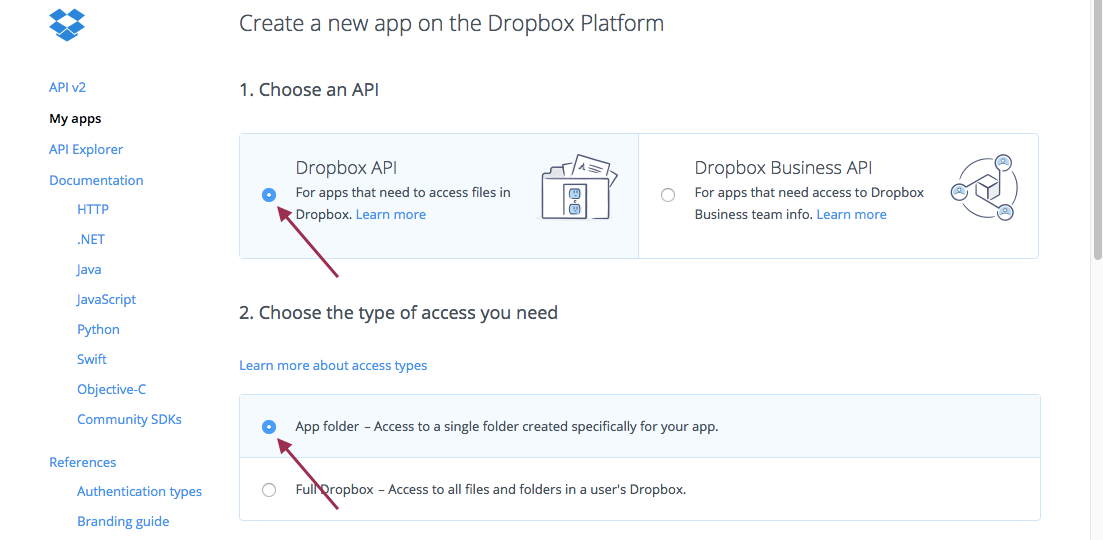
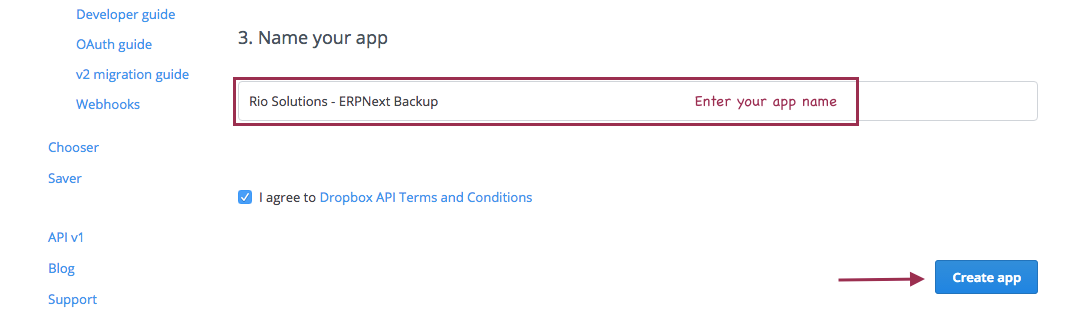
Step 4: Insert your custom domain Redirect URI#
https://{yourwebsite.com}/api/method/frappe.integrations.doctype.dropbox_settings.dropbox_settings.dropbox_auth_finish 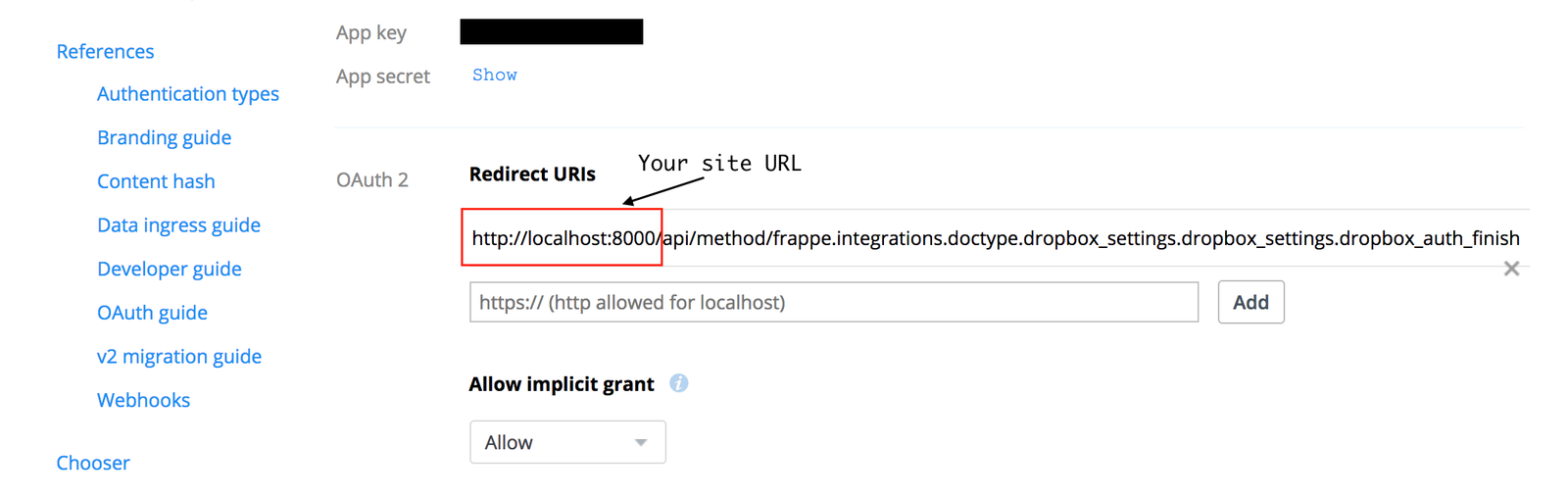
Step 5: In a new window, open the Dropbox Settings page in your ERPnext installation#
Step 6: Set backup frequency and email#
Set the frequency to download your site backups to your Dropbox account. 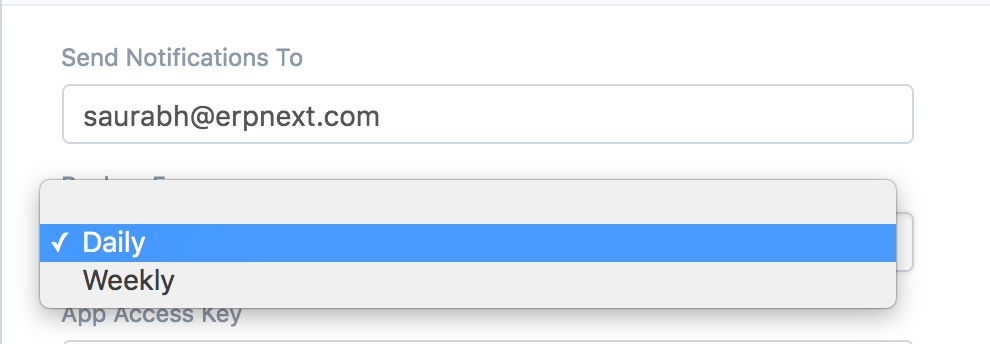
Step 7: Input Keys from your Dropbox App window#
From your Dropbox App page, enter the app key and (unhidden) app secret into the ERPnext Dropbox settings page.
Alternatively, you can enter it manually in sites/{sitename}/site_config.json as follows,
       {
 "db_name": "demo",
 "db_password": "DZ1Idd55xJ9qvkHvUH",
 "dropbox_access_key": "ACCESSKEY",
 "dropbox_secret_key": "SECRECTKEY"
}
Step 8: Click Save before continuing#
Step 9: After saving, click "Allow Dropbox Access"#
The Dropbox login page will open in the new tab. This might require you to allow pop-up for your EnigmaERP account.
Step 11: Allow Dropbox Access#
On successful login, you will find a confirmation message as following. Click on "Allow" to let your EnigmaERP account have access to your Dropbox account. 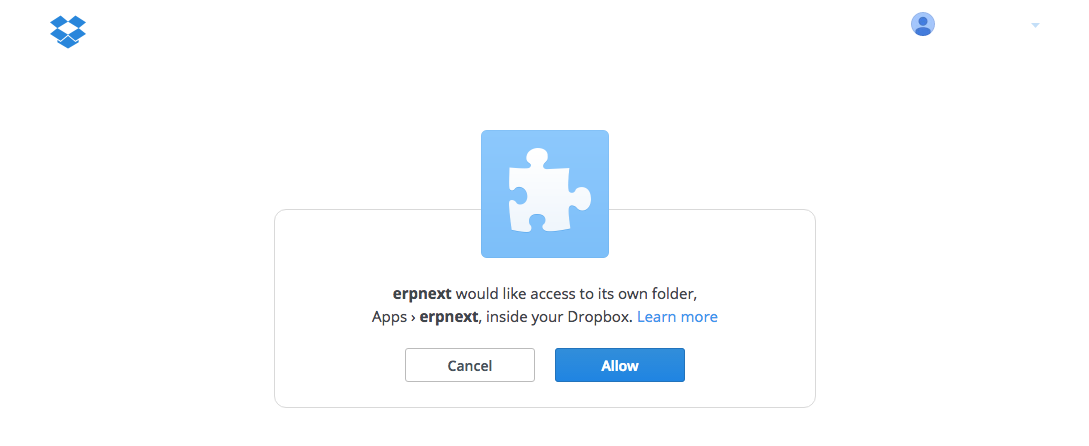
Step 12: Confirm Backups Work#
From the ERPnext Dropbox page, click Take Backup Now and then go to you Dropbox files view. You should see a new folder in Dropbox named Apps and inside of it your {New App} folder. Inside of it should be backup folders for both files and database. So for an app named erpnext, following are the folder locations:
Database files: /Apps/erpnext/database
Public files: /Apps/erpnext/files
Private files: /Apps/erpnext/private/files